How We Designed Voice Control and Shortcuts for Users with Motor Impairments
The Challenge: Why Traditional Device Control Falls Short for Motor Impairment Users
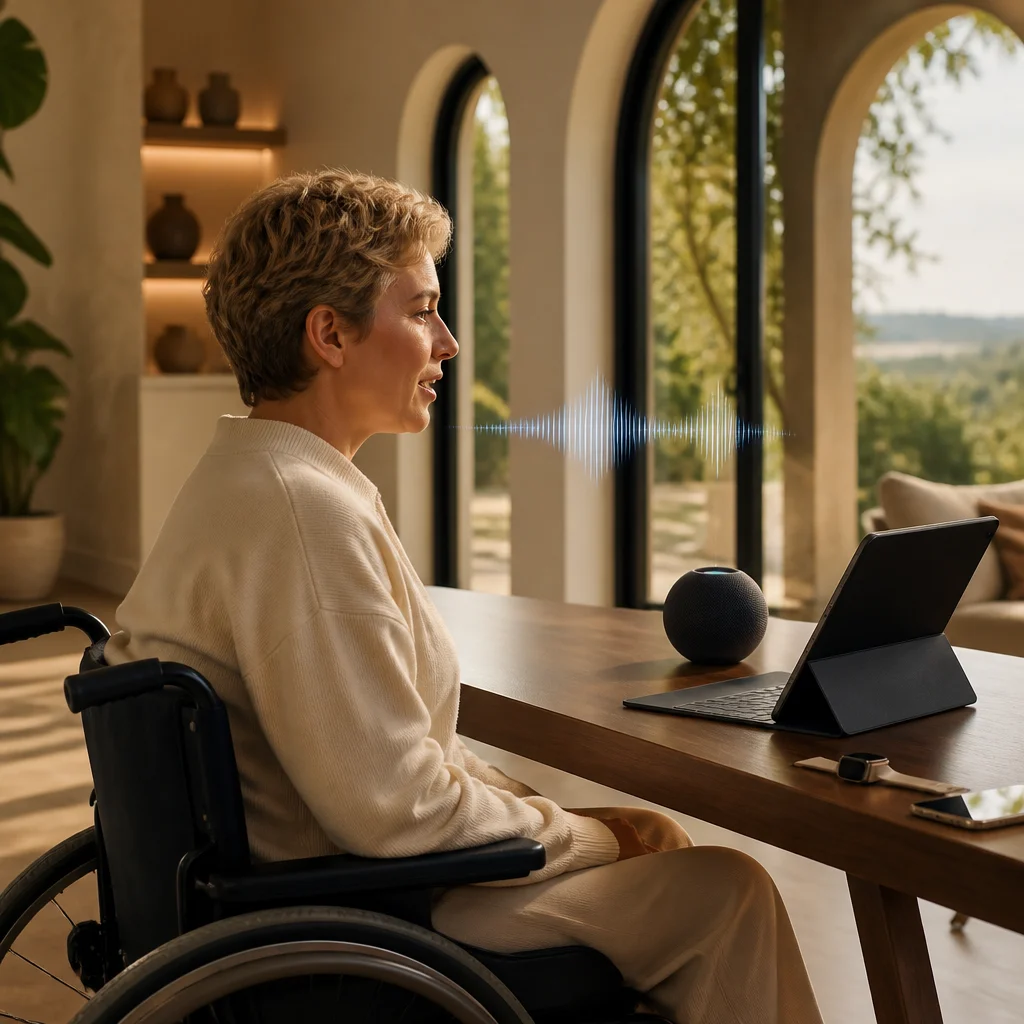
Touchscreens, trackpads, and mice work beautifully for many people, but they create genuine barriers for users with motor impairments. Someone with limited hand mobility, tremors, or reduced dexterity faces constant friction: tapping the right spot on a screen becomes exhausting, typing drains energy, and navigating menus requires precision that might not be possible.
Traditional device control assumes a level of fine motor control that not everyone possesses. Swiping through apps, pinching to zoom, or performing multi-step gestures demands physical capabilities that shouldn't gate someone from accessing their device's full power. We recognized this gap and made it our priority to eliminate these barriers entirely.
The real problem goes deeper than convenience. When someone can't easily control their device, they lose independence. They might need assistance to send a message, adjust settings, or access content. That's unacceptable. We demanded better solutions, and our accessibility teams set out to build them.
Your next step: Assess which daily device tasks feel most difficult right now. This clarity helps identify which features will transform your workflow the most.
How We Approach Accessibility: Our Core Philosophy
Accessibility isn't an afterthought or a feature we bolt on at the end. It's woven into everything we design from day one. We believe technology should adapt to people, not the other way around. Every product we create must be usable by everyone, regardless of physical ability.
Our philosophy rests on three pillars: independence, choice, and dignity. Users with motor impairments deserve to control their devices entirely on their own terms, choose how they interact with technology, and do so without feeling like they're using a special or separate system. We design with the assumption that accommodations should feel natural and seamlessly integrated.
We gather feedback directly from our users and communities to ensure we're solving real problems. This isn't theoretical accessibility work; it's grounded in the actual daily experiences of people navigating their devices.
Voice Control Mastery: Natural Conversation Meets Precise Device Command
Voice Control is our flagship accessibility feature, and it's genuinely powerful. Unlike Siri, which handles broad commands and questions, Voice Control gives you direct, granular command over every element on your screen using natural speech.
Here's what makes it different: you can speak virtually any instruction and your device listens and executes. Say "open Mail" and Mail launches. Say "scroll down" and the page moves. Say "tap the reply button" and it does exactly that. The system understands spatial relationships and context, so it knows which button you mean even when multiple options exist on screen.
The real magic happens with custom voice labels. You can assign spoken labels to any button, link, or control. Imagine labeling your most-used functions with single words: "compose," "send," "archive," or "settings." These become your personal voice vocabulary, tailored entirely to how you think and speak.
Voice Control works across all our devices, from iPhone and iPad to Mac. The recognition engine runs locally on your device, meaning your commands stay private and processing happens instantly without internet dependency.
What to do next: Activate Voice Control in Settings, then spend time labeling the elements you use most frequently. This small upfront investment pays enormous dividends in speed and ease of use.
Creating Custom Shortcuts: Workflows Tailored to Your Needs
Shortcuts is our automation engine, and it transforms how you interact with your device. Instead of performing ten manual steps to complete a task, you execute one voice command that runs the entire workflow.
Think about something you do regularly: checking your calendar, sending a daily message to a family member, gathering photos from this week, or preparing your morning briefing. Each of these typically requires navigating multiple apps and performing repetitive actions. Shortcuts automates all of that.
The Shortcuts app provides a visual interface where you chain actions together. You don't write code; instead, you build workflows by selecting actions and configuring them. Want to send a text, then open Maps, then start playing a focus playlist? Drag those actions into your shortcut, customize them, and you're done. Now one voice command does all three things in sequence.
Custom shortcuts eliminate repetitive motions that cause fatigue. For users with motor impairments, this means spending your physical energy on activities that matter rather than on device navigation mechanics.
Integration Across Our Ecosystem: One Voice, Every Device
We've built our ecosystem so your voice and shortcuts follow you everywhere. Voice Control works on your iPhone, iPad, and Mac with consistency. Shortcuts created on one device sync across your entire setup through iCloud.
This interconnected experience matters tremendously. You might use Voice Control on your iPhone while out, then transition to your Mac at your desk, then control your iPad from across the room. Each device understands your voice, recognizes your custom labels, and runs your shortcuts identically. No relearning, no reconfiguration.
Our macOS Continuity features extend this further. Start a shortcut on iPhone and continue it on Mac. Begin composing on one device and finish on another. The accessibility features travel with you seamlessly.
This unified approach means you're not managing different accessibility setups for different devices. You establish your preferences once, and they work everywhere.
Real-World Applications: Workflows That Transform Daily Tasks
Let's ground this in genuine scenarios. A professional with limited hand mobility might create a morning shortcut: one voice command runs a news briefing app, opens their calendar, fetches emails from their boss, and starts their focus music. Before starting work, they have complete context, all hands-free.
A student with motor impairments uses Voice Control to navigate their research apps. They label important buttons with single-syllable words they can speak clearly. They've created shortcuts that pull highlighted text from academic papers and automatically format them into a research document. Studying becomes efficient rather than exhausting.
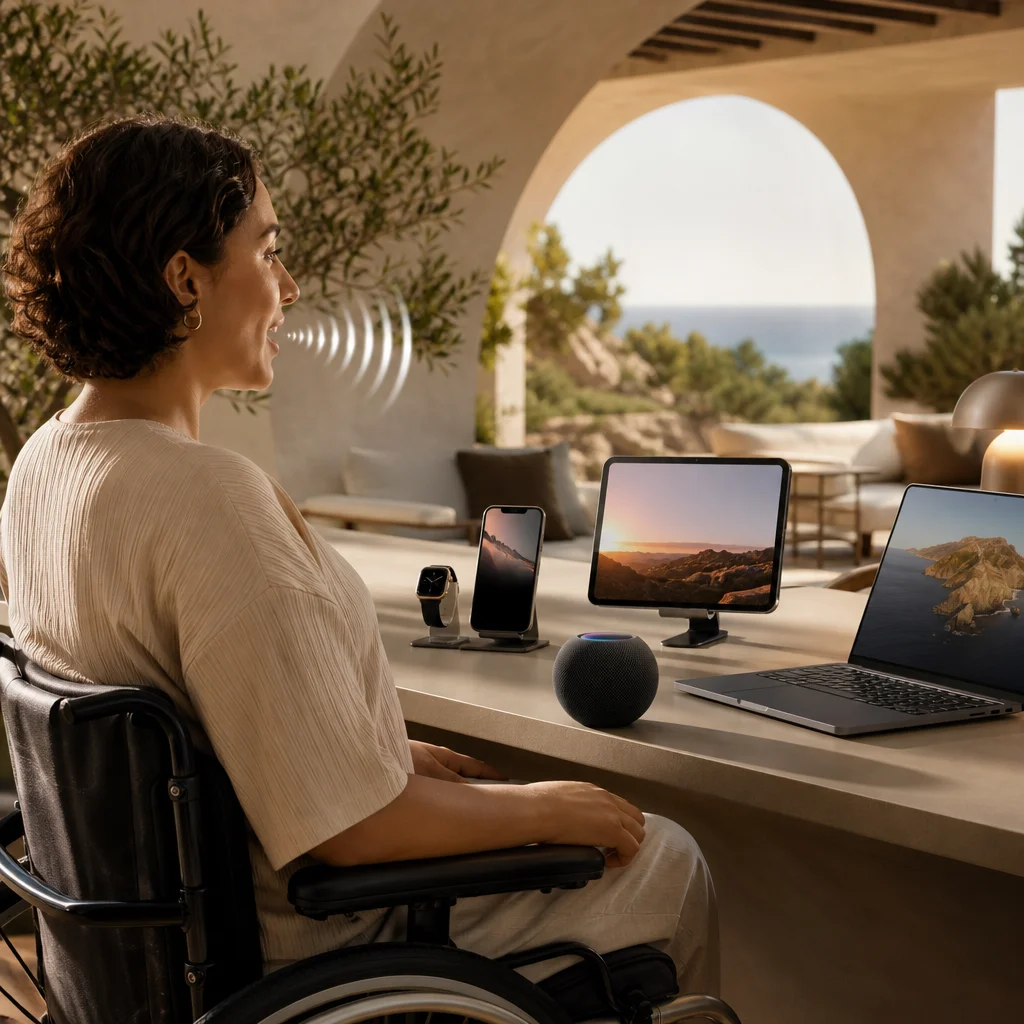
Someone managing a chronic condition that causes tremors creates shortcuts for their daily routine: taking medication reminders, logging symptoms in a health app, and sending updates to their healthcare provider. Voice control handles everything reliably, regardless of hand stability.
These aren't hypothetical cases. These are real workflows our users have built and shared with us. The common thread: they've reclaimed time and energy by removing friction from technology.
Advanced Customization: Building Complex Automations Without Code
As you grow comfortable with shortcuts, you'll discover increasingly powerful capabilities. Conditional logic lets your shortcuts make decisions. You can say, "Send my location home if I leave work after 6 PM," and the shortcut handles the time check automatically.
You can integrate with countless apps through our Shortcuts framework. Request weather data, manipulate photos, send network requests, or control HomeKit accessories. The possibilities expand far beyond simple task sequences.
Text manipulation, mathematics, data filtering, and file operations are all available. Build a shortcut that processes a voice recording, extracts key information, formats it, and distributes it to relevant people. This happens entirely through visual action blocks you arrange and configure.
The barrier to entry remains low even as complexity increases. You're never writing syntax or debugging code. If something doesn't work, you adjust the action configuration visually.
Combining Voice Control and Shortcuts: Powerful Synergy in Action
The true power emerges when you combine Voice Control with Shortcuts. Voice Control becomes your input method, and Shortcuts becomes your automation layer.
You might assign a voice label to a custom shortcut button, then speak that single label to trigger a multi-step workflow. Or use Voice Control to navigate an app's interface while leveraging shortcuts to automate the actions that require precision or repetition.
Imagine speaking "prepare presentation," which triggers a shortcut that creates a new document, pulls today's agenda, inserts your template, and opens it in edit mode. Voice Control got you there, shortcuts did the heavy lifting, and you're ready to work.
This combination is what transforms device use from challenging to effortless for users with motor impairments.
Privacy and Security: Your Control, Your Data
We've engineered Voice Control and Shortcuts with privacy built in from the foundation. Voice commands are processed locally on your device, not sent to our servers for analysis. Only you hear what you say, and only your device acts on those commands.
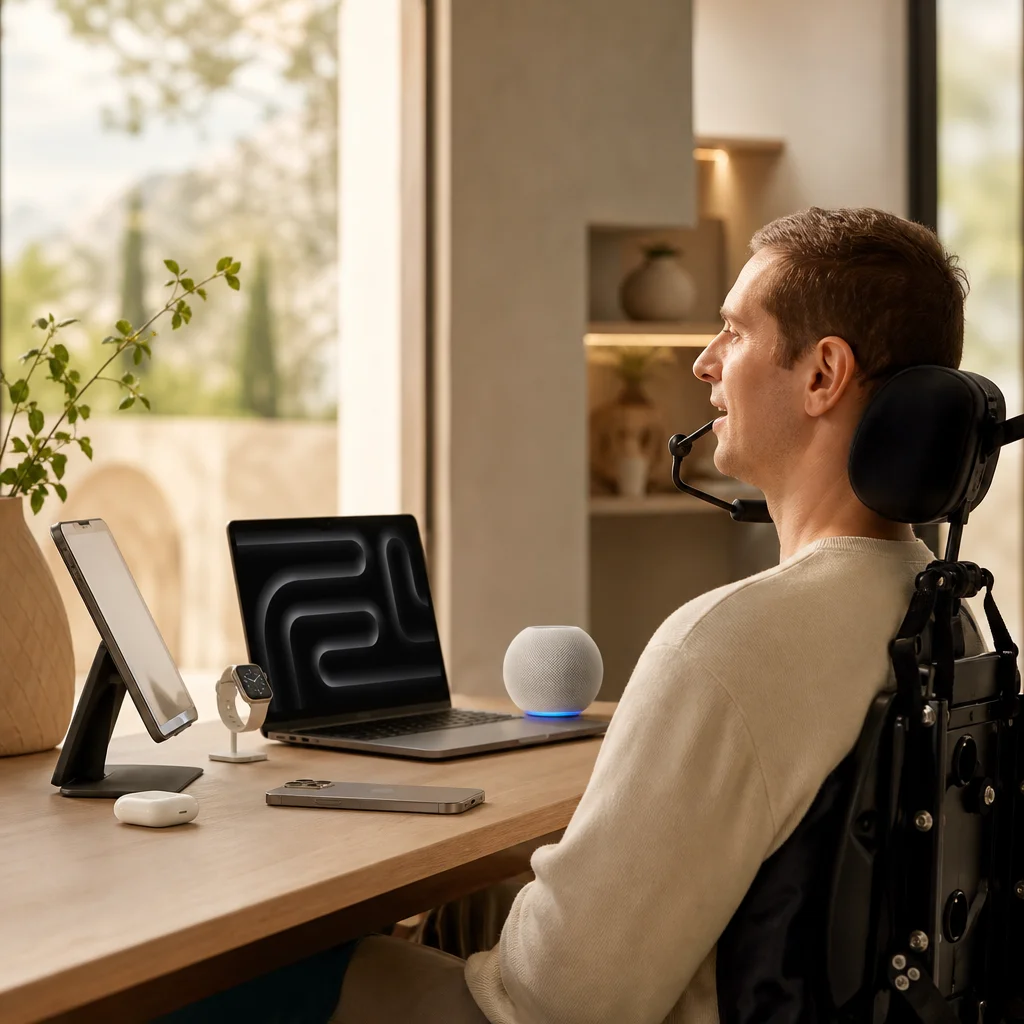
Your custom voice labels and shortcuts remain private. They sync through iCloud with end-to-end encryption, meaning even we can't access them. The data stays yours entirely.
You maintain complete control over permissions. When you create a shortcut that accesses your contacts or calendar, you explicitly approve that access. Shortcuts can't run without your permission, and you can revoke access anytime through Settings.
This privacy-first approach ensures that accessibility accommodations don't become surveillance. Your device serves you, period.
Getting Started: Setting Up Your Voice-Activated Workflow
Begin by opening Settings on your iPhone, iPad, or Mac and navigating to Accessibility. Enable Voice Control. Your device will guide you through setup: confirming it hears your voice clearly and establishing baseline preferences.
Start simple. Pick one daily task and create a basic shortcut: perhaps opening your most-used apps in sequence or sending a regular message. Use that repeatedly until it feels natural.
Next, open the Shortcuts app and explore the pre-built shortcuts gallery. Apple and third-party developers have created hundreds of templates. Duplicate one that approximates your need, then customize it. This beats starting from scratch.
Gradually add voice labels to frequently-used interface elements. Label buttons with short, distinct words you speak clearly. Build these labels organically as you discover which controls matter most to your workflow.
Expanding Possibilities: Connecting Third-Party Apps and Services
Our Shortcuts framework supports thousands of third-party apps. Whether you use productivity tools, creative software, health apps, or communication platforms, shortcuts can integrate with them.
Look for the Shortcuts app's "Add to Siri" option within other apps. This exposes their functionality to shortcuts and voice commands directly. Build workflows that span your entire app ecosystem, not just Apple's tools.
Services like Zapier and IFTTT integrate with Shortcuts, connecting your device workflows to web services and automations beyond your phone or computer. Send device actions to cloud services, or trigger device workflows based on external events.
This extensibility means your accessibility setup grows richer over time. As you discover new apps and services, you weave them into your custom voice-controlled workflow.
We're genuinely proud of what we've built here. Voice Control and Shortcuts represent our commitment to accessibility that actually works: features so powerful and natural that they benefit everyone, while removing genuine barriers for users with motor impairments. Your device should work for you, exactly as you need it. That's what we've designed.
For further reading: Vision Pro accessories, Apple Intelligence.